Miyabi is where you are supposed to do most of your programming
work
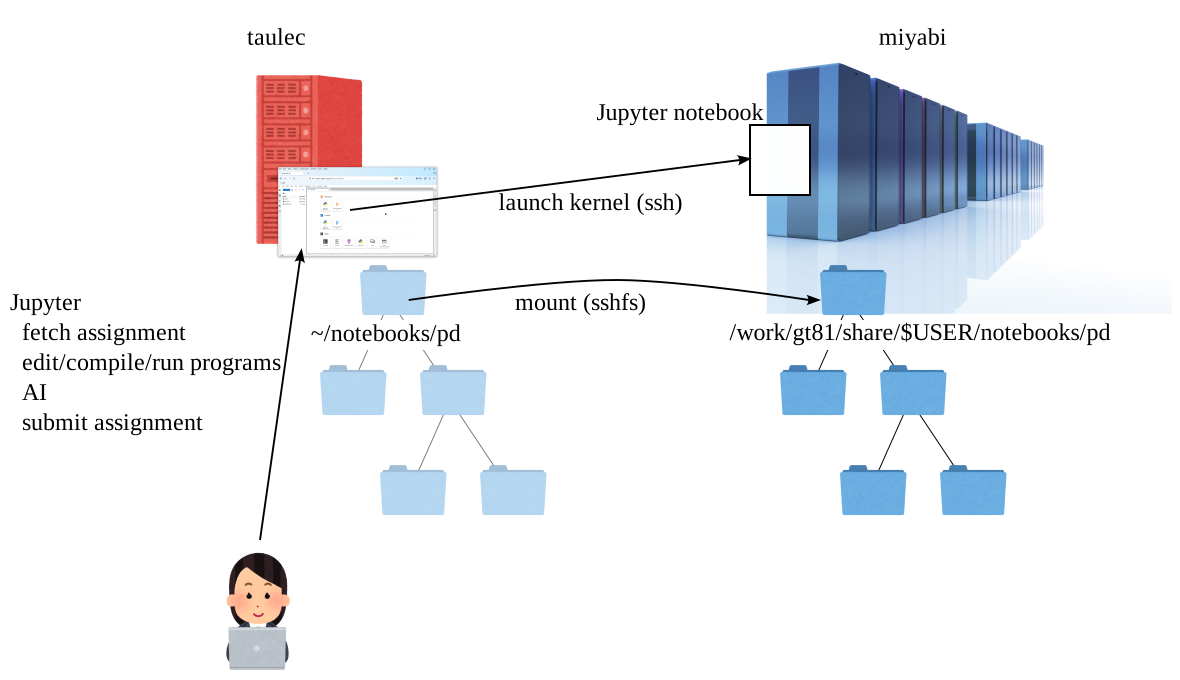
You use taulec server to
receive exercise materials,
edit, compile, and run the program,
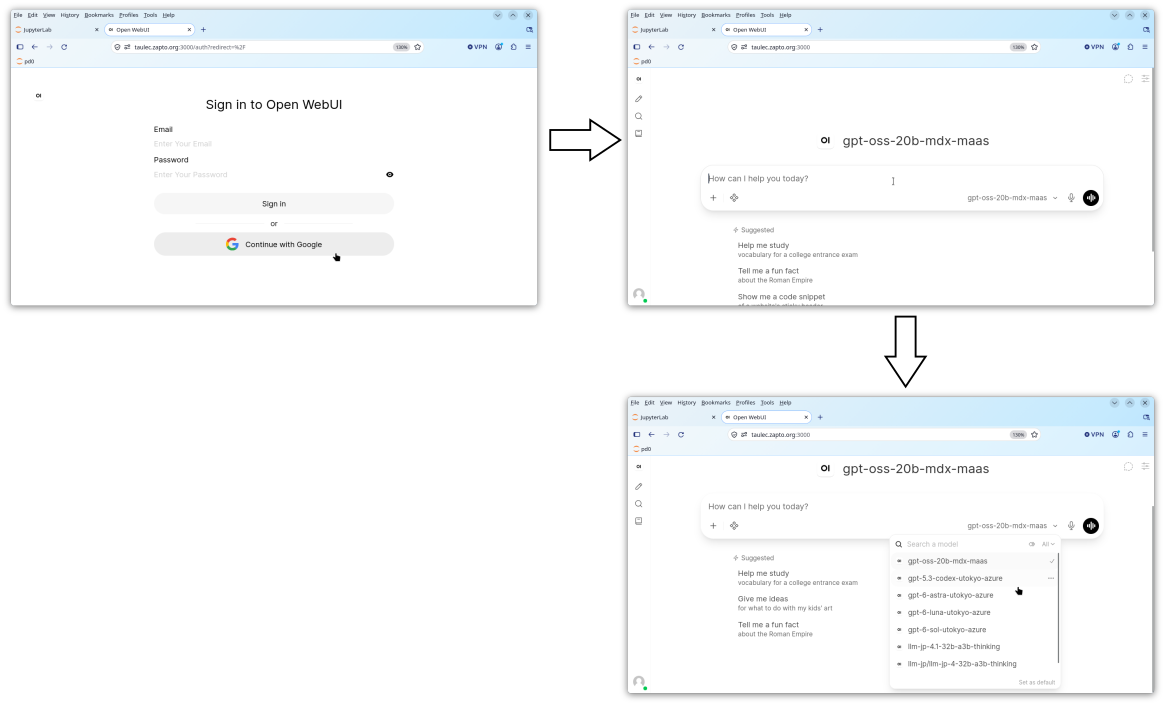
use AI for help (Jupyter AI, OpenCode, and Open WebUI), and
submit assignments
We might also use taulec server for programming exercise when Miyabi
is unavailable (or too crowded)
Below, I walk you through procedures to set the environment ready
for you
If you are reading this page before the first lecture (2026-10-05
16:50) starts, I am encouraged to finish what you can do now before the
class
Receive You Accounts
Go to UTOL course page and submit the
assignment “Assignment 0: send info to issue your account for exercise
environment”
If you cannot see the course page, register yourself in UTOL
Note: self-register in UTOL does not enroll you to the course for
credit, which must be separately done in UTAS when you decide to do so
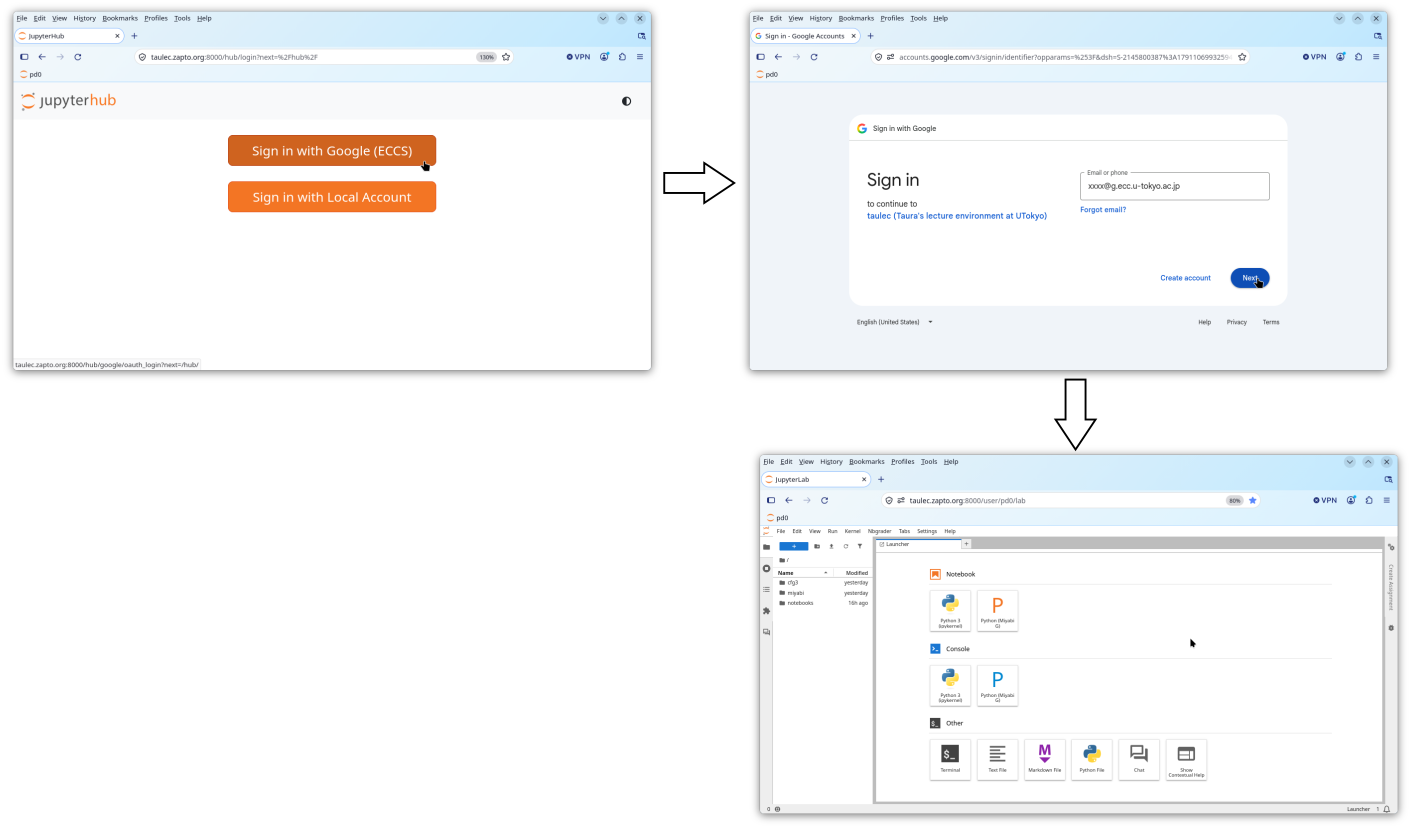
Enter your UTokyo Google account (xxxx@g.ecc.u-tokyo.ac.jp) and
submit
I’ve received from a few of you addresses not exactly in this domain
(@g.ecc.u-tokyo.ac.jp); please
resubmit it if possible. If it’s not possible, please let me know in the
UTOL messsage
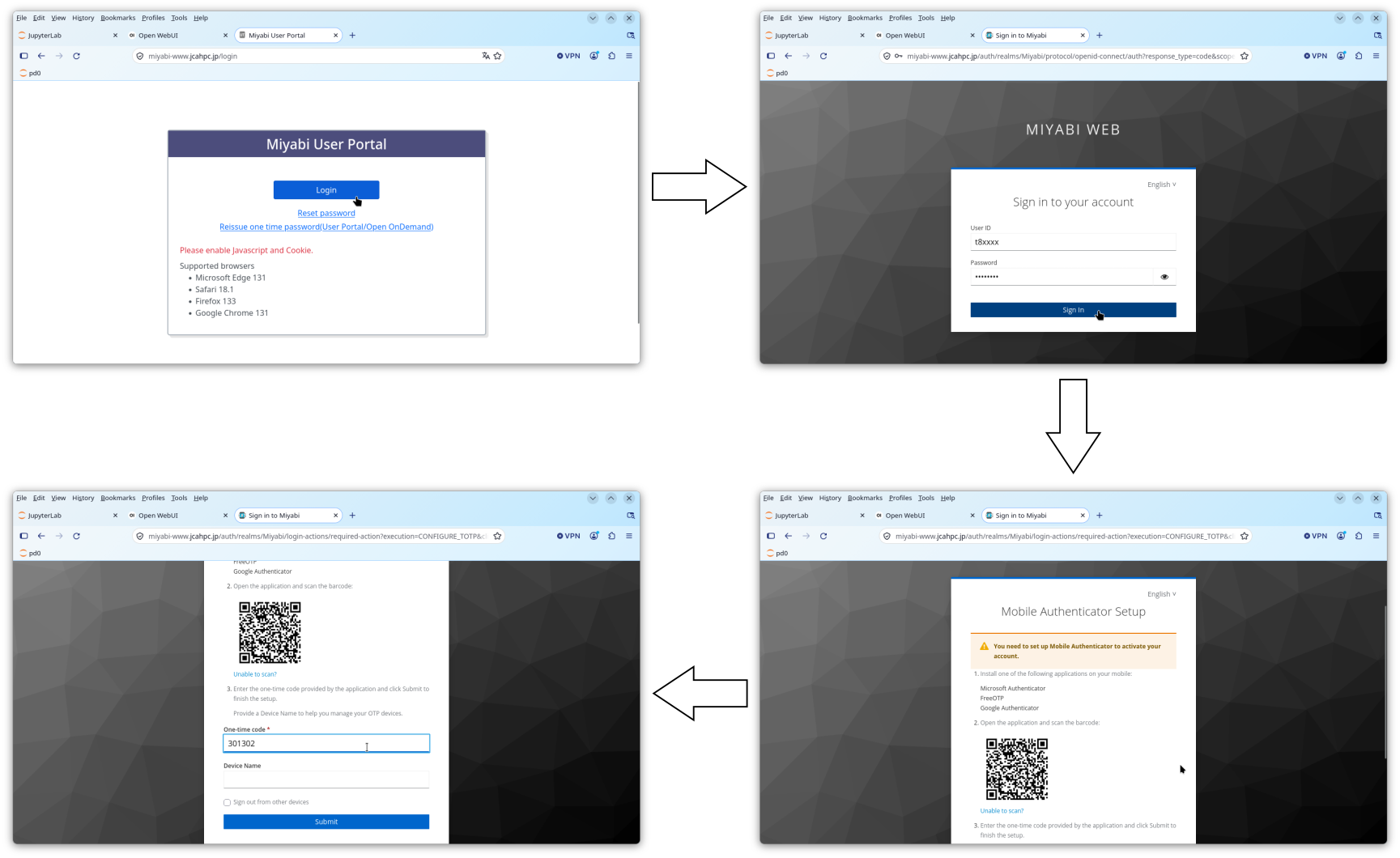
Then get feedback from the instructor for it, which gives you
use (A) the user name (t8….) and (B) password you received from UTOL
feedback
You will be asked to scan QR code with your authenticator app, so
scan it with the authenticator app
Open the entry just created in the app (named
t81xxx@miyabi) and show the 6-digit verification code;
enter the code on the page
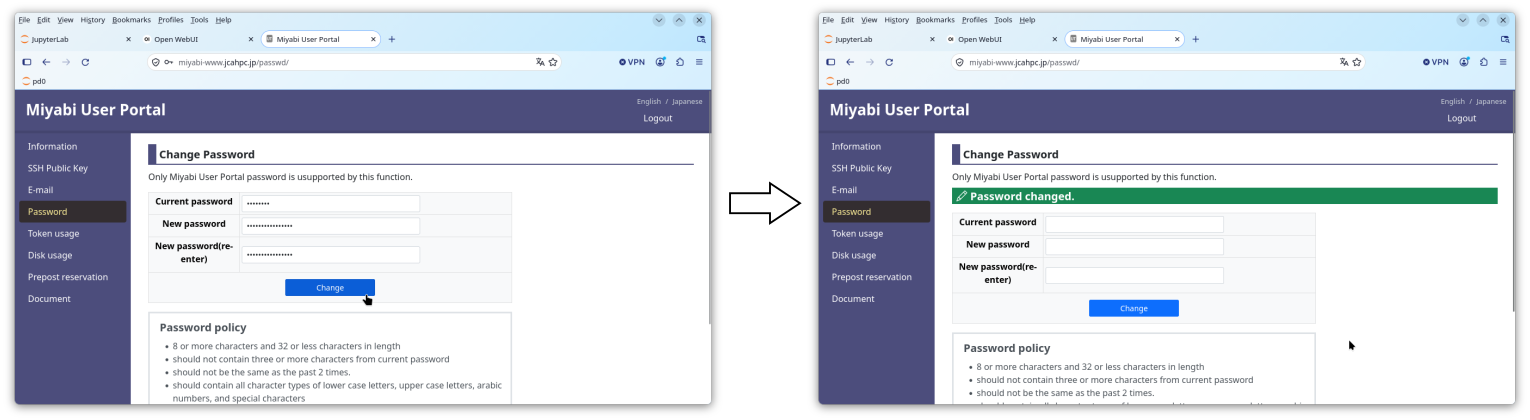
You will then be asked to change the password; I recommend to use a
random password generator like pwgen
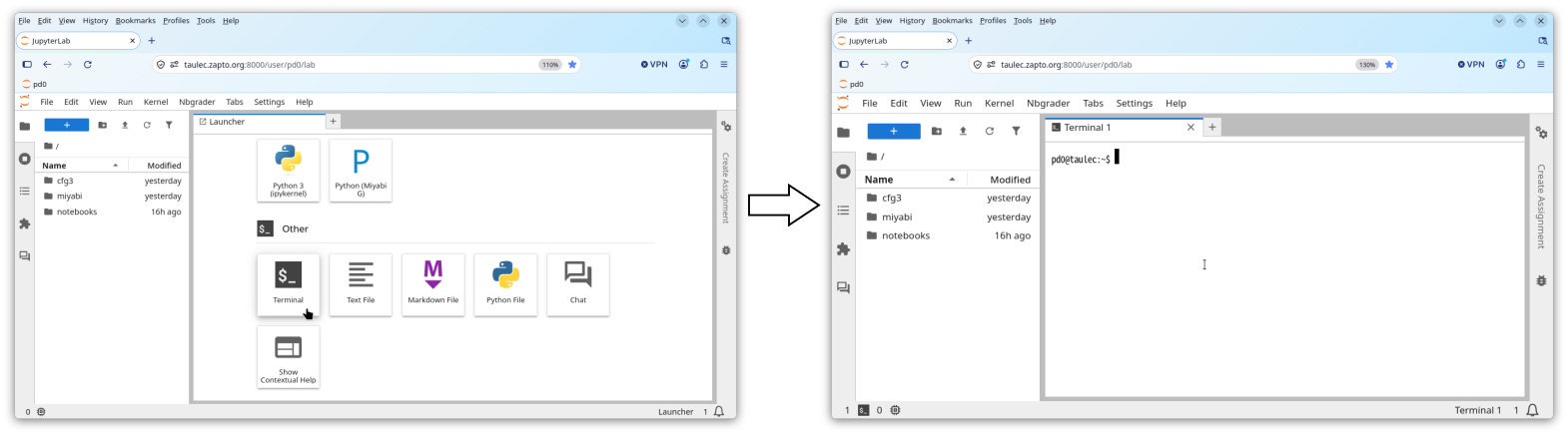
(pwgen -y 16 1). It is available in taulec (open “Terminal”
in the launcher page)
You are asked to enter the 6 digit code every time you login the
portal
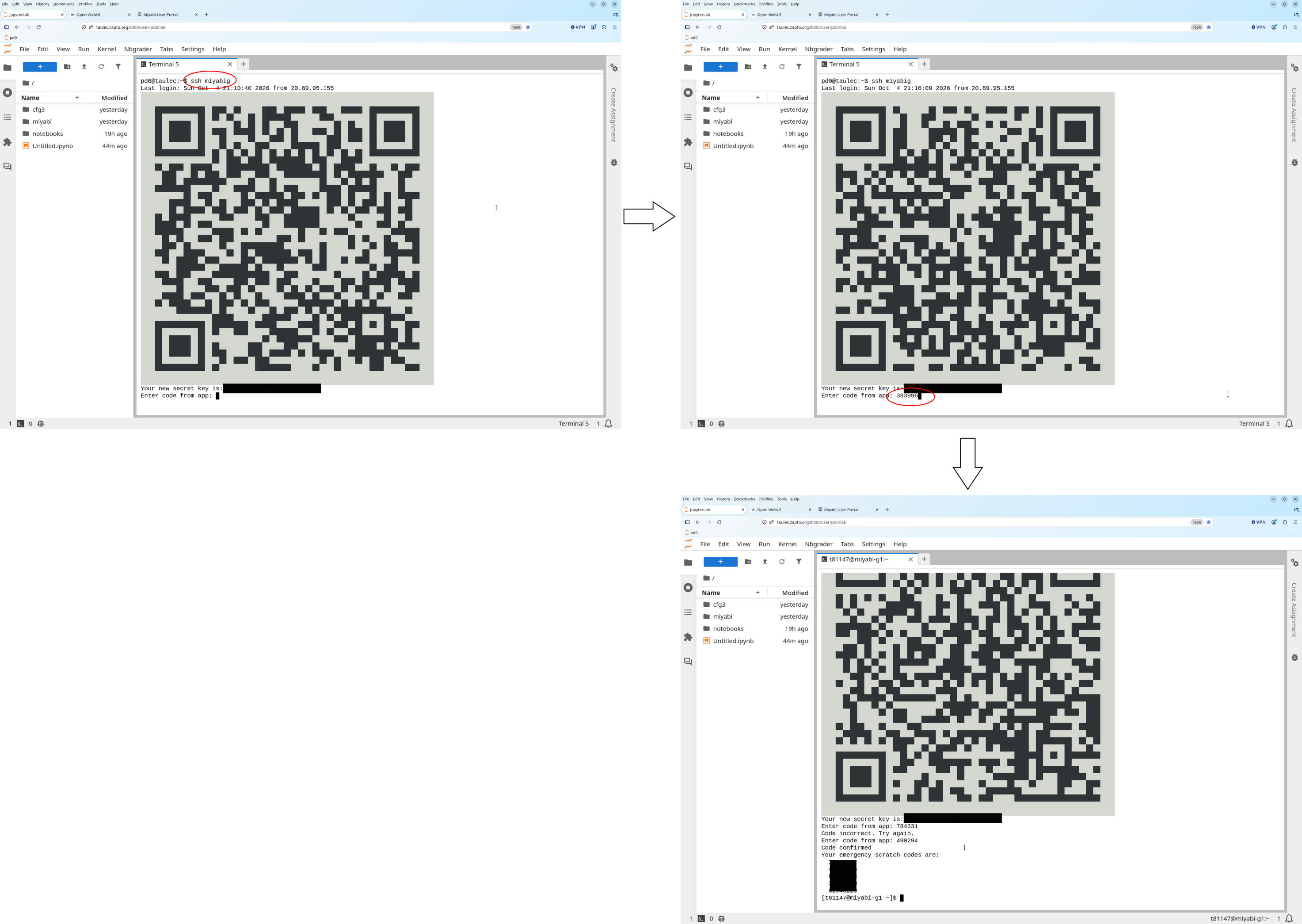
On the first login, it displays a QR code with ASCII art you are
asked to scan
Open the authenticator app and scan it
Open the entry just created in the app (named
t81xxx@miyabi-g?) and show the 6-digit verification code;
enter the code the the terminal
If your phone does not recognize the QR code, it is probably because
of wrong fonts; your OS uses a font that shows the code not as a square
but as a tall rectangle; let me know if that happens
Once you succeed, log out and ssh again; this time, you will
not be asked to enter the verfication code
The reason is the configuration below, which skips verification code
for the next six hours
FYI: Under the Hood:
~/.ssh/config
By default, every time you SSH Miyabi, you are asked to enter
6-digit code
It is very inconvenient, so taulec has been configured
for you
It is in ~/.ssh/config; you will find something like
this
Host miyabig
    HostName miyabi-g.jcahpc.jp
    User t81xxx
    ControlMaster auto
    ControlPath ~/.ssh/cm_%r@%h:%p
    ControlPersist 6h
    ServerAliveInterval 60
miyabig serves as the alias for
miyabi-g.jcahpc.jp
User t81xxx allows you to omit user name
(t81xxx@)
The three lines that follow (ControlXXXX ...) together
allow you to reuse an authenticated session from taulec to miyabi, so
you do not have to enter verification code every time
Final Steps: Fetching
Exercise Material
Mounting Miyabi File
System on taulec
taulec and Miyabi are two separate machines with separate user set
and file system
To seamlessly make files on Miyabi from taulec, we use
sshfs
This is the state we are headed
From Jupyter on taulec, launch “Terminal” and execute the
following (repalce t81xxx with your user name on Miyabi)
taulec$ ls ~/miyabi     # miyabi is an empty directory
taulec$ sshfs miyabig:/work/gt81/share/home/t81xxx ~/miyabi
taulec$ df
  ...
miyabig:/work/gt81/share/home/t81149 10865838112000 3914807077240 6841070095012  37% /home/pd0/miyabi
The sshfs command “mounts”
/work/gt81/share/home/t81xxx directory on
miyabig to ~/miyabi on taulec, meaning that
the former directory is now visiable as the latter
On taulec, every access to any file under ~/miyabi
directory actually accesses Miyabi
Note also that ~/notebooks/pd is a symlink to
~/miyabig/notebooks/pd
Therefore, every access to any file under
~/notebooks/pd directory actually accesses Miyabi
The df commands shows the status of mount. If the line
like
miyabig:/work/gt81/share/home/t81xxx ... /home/u26xxx/miyabi
appears, your directory is mounted
When you do your exercise, make sure your ~/miyabi
directory is mounted
Since the above sshfs command is too long and difficult
to remember to type every time, there is mount-miyabi
command for it
taulec$ mount-miyabi      # mount
taulec$ mount-miyabi -u   # unmount
(Finally!) Fetch an
Exercise and Start Playing!
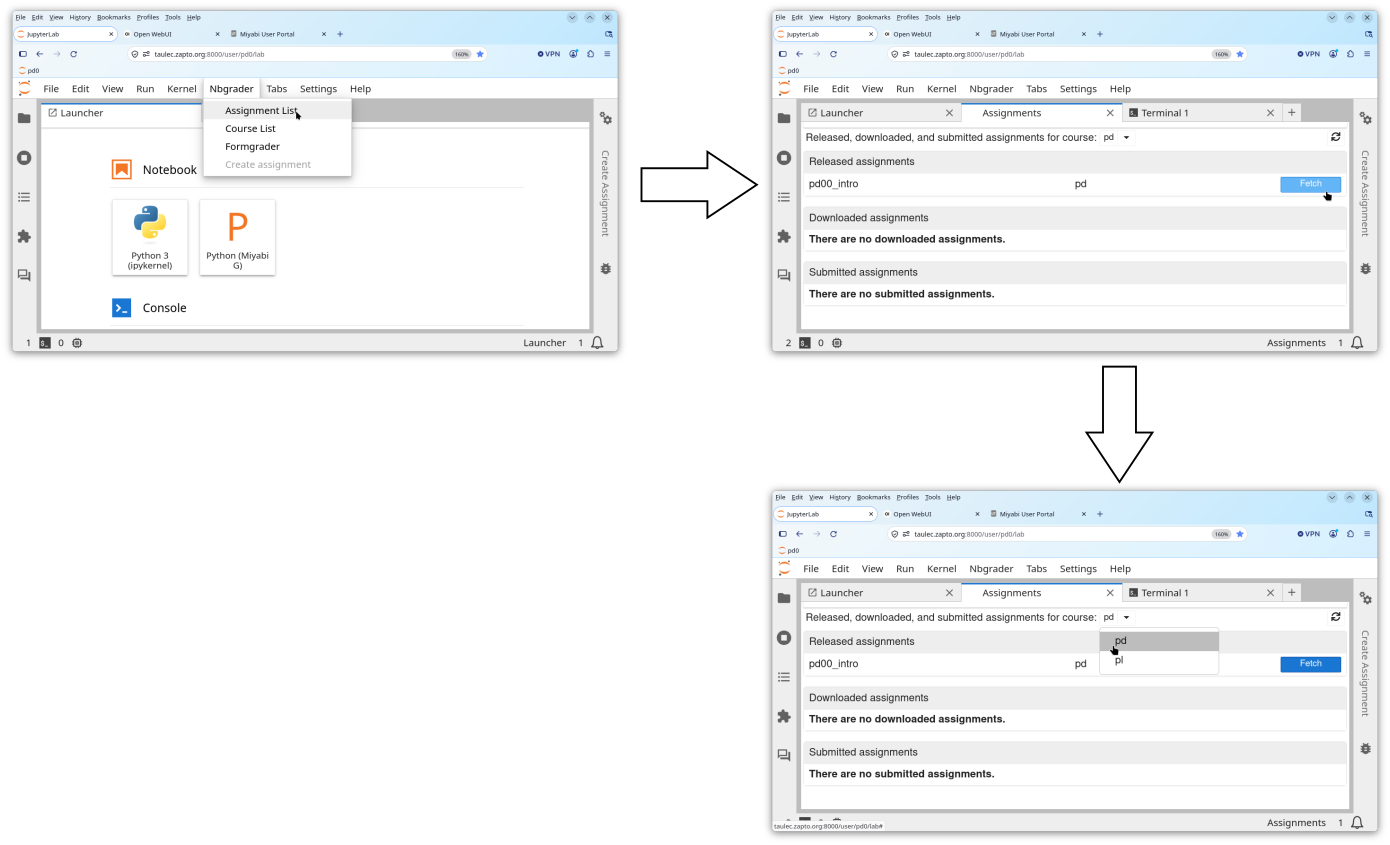
From menu, Nbgrader -> Assignment List
Select pd from the drop down menu next to “Released,
downloaded, and submitted assignments for course:”
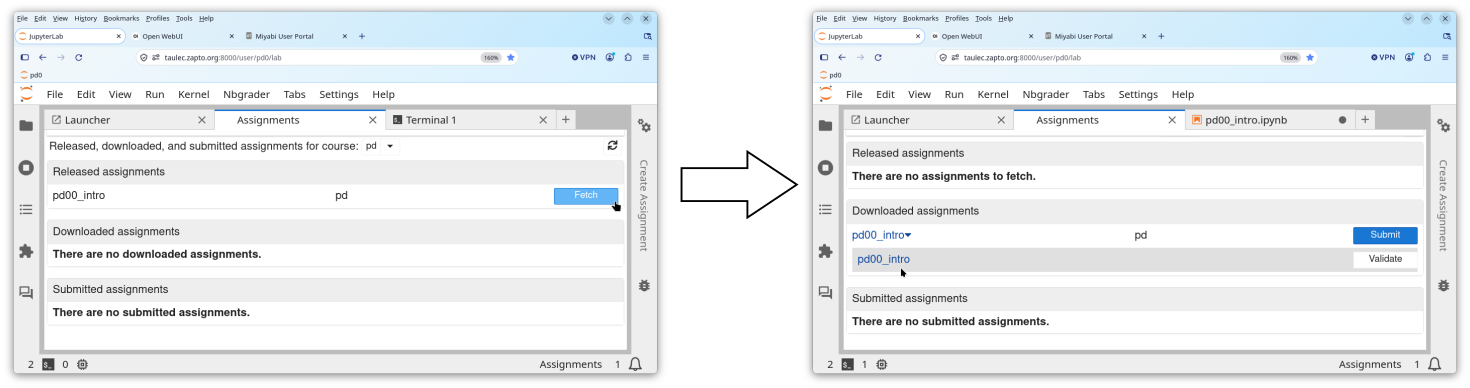
Fetch an assignment from “Released assignments”
Open the notebook and start working on it!
(Optional) Directly
SSH Miyabi from Your PC
In this course, the canonical way to access Miyabi is via Jupyter on
taulec
That is, you sign in Jupyter on taulec using Google account and then
SSH Miyabi from taulec
The reasons for doing so are
We want to use Jupyter for giving exercise materials
We want to use coding agent AI on taulec, which is not allowed to
run on Miyabi
However, the main work of editing, compiling, and running programs
can be done by directly logging into Miyabi and it is simpler if you
have no issues in character-based user interface (CUI)
If you are such a type,
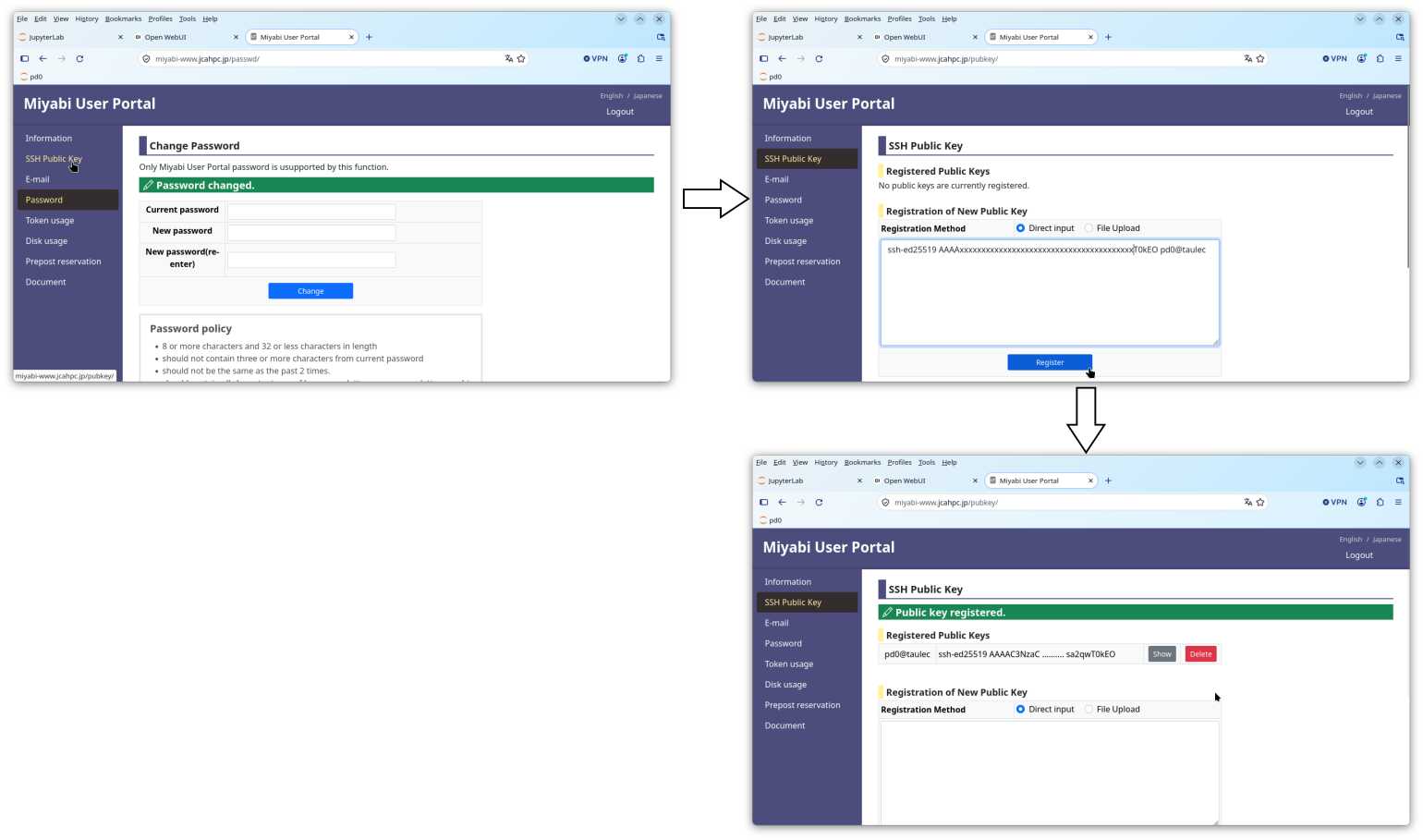
Register your SSH public key corresponding to the private key on
your local PC via Miyabi User Portal
Just remember that files you fetched in Jupyter are in
/work/gt81/share/home/$USER/notebooks/pd; do your work
there